Web Editor
The Reward Pro web editor lets you design your reward GUI entirely from your browser. No file editing required.
Access it at elandgames.com/reward-pro/editor (login required).
Overview
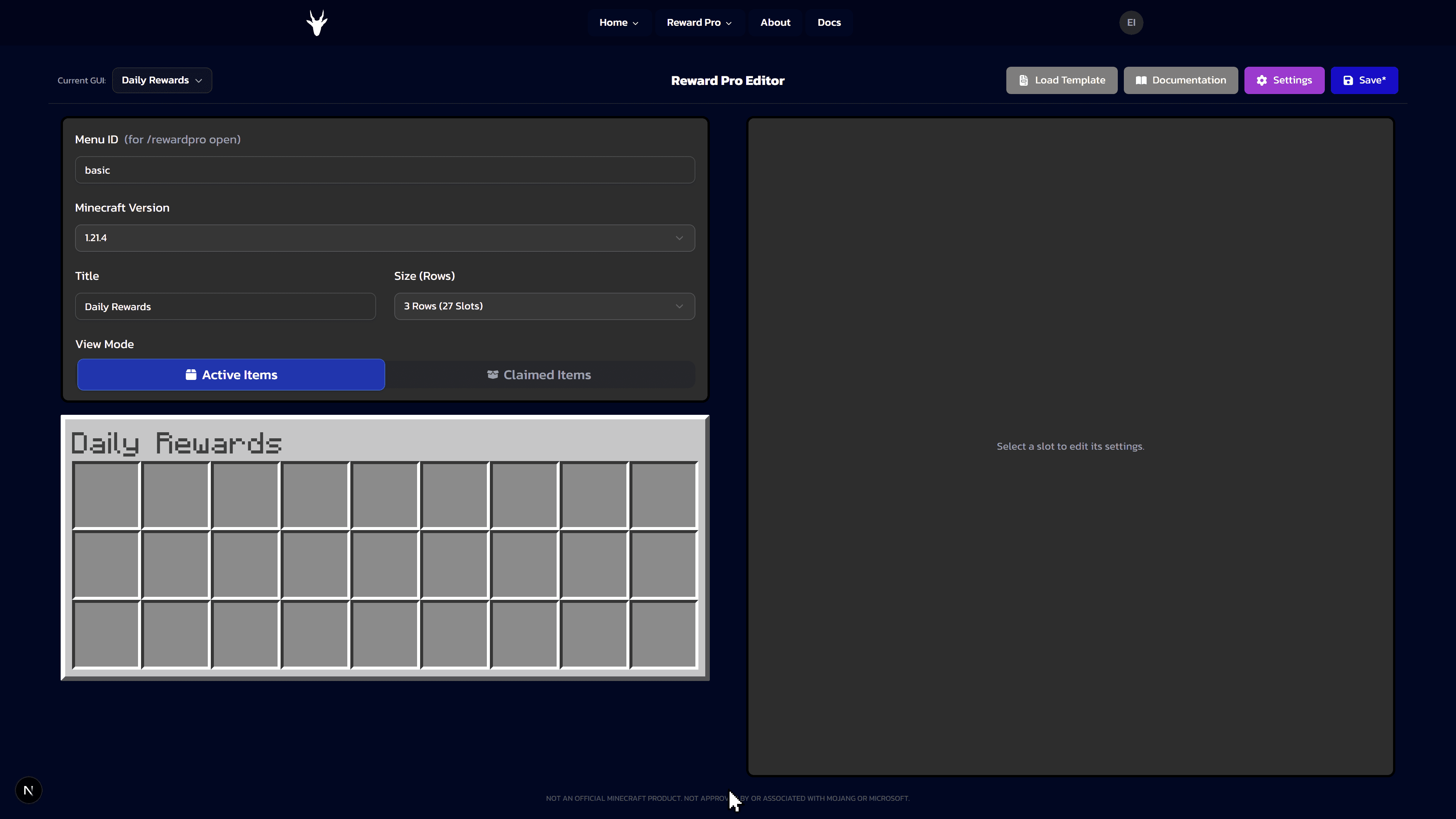
The editor is split into three panels:
| Panel | Purpose |
|---|---|
| Inventory Settings | Set the GUI name, number of rows, Minecraft version and view mode |
| Inventory Grid | Click slots to add, edit, or remove reward items |
| Slot Settings | Configure the selected slot: item, lore, commands, slot type and reward type |
Click any image or video on this page to view it fullscreen.
Slot types
| Type | Description |
|---|---|
| Reward | A claimable reward. Runs commands when claimed. Shows a different item before and after claiming. |
| Vote | Rewards the player for voting on a server list site. Needs the Vote Reward add on. |
| Action | Runs commands when clicked, without a claim or cooldown system. |
| Decoration | A visual item only. Players cannot click it. |
Setting up a reward slot
Click an empty slot in the grid
The Slot Settings panel opens on the right.
Choose the slot type
Pick Reward in the Slot Type tabs.
Set the Before Claim item
This is what players see before they claim the reward. Choose a Minecraft item, then set a display title, lore and amount.
Set the After Claim item
This is what players see once the reward is claimed. By default the editor copies everything from the Before Claim section. Untick the copy boxes if you want a different look, for example a locked variant.
Enter the reward code
In the Reward Code field, enter one command per line. Use placeholders like {player}, {streak} or {date} from the toolbar.
Example:
/give {player} diamond 1
/broadcast {player} claimed the Day {streak} reward!
Choose the reward type
Pick how often the reward can be claimed: Streak, Recurring, One Time, Playtime (add-on) or Quest (add-on).
Claiming it in game
Once you’ve saved a GUI in the editor and run /rewardpro reload, here’s what a player actually
sees: opening the reward NPC, hovering the reward slot and claiming it.
Reward types
The reward type controls when a Reward slot becomes claimable again. It’s a separate choice from the slot type: every Reward slot picks exactly one of these.
| Type | Fields | Behavior |
|---|---|---|
| Streak | Streak Duration (1–365 days) | Claimable once per day; missing a day resets the streak. Reset behavior is configured once for the whole server in Global Settings → Streak |
| Recurring | Start Date, repeat interval (Hour/Day/Week/Month/Year), weekday picker (weekly), month-interval mode (day-of-month / first day / Nth weekday / last weekday / last day of month), End Date, grace period | Claimable on a repeating schedule. Whether the next window snaps to a fixed calendar boundary or rolls forward from the exact claim time is set once for the whole server in Global Settings → Recurring |
| One Time | Reward Date, grace period, or an “Always available, claim once” switch | Claimable exactly once, either on a specific date or (with the switch) at any time |
| Playtime (add-on) | Track Session time or Total playtime, required time, optional repeat interval | Claimable once a player has spent enough time online. See Playtime Reward |
| Quest (add-on, Coming Soon) | Objective (break blocks / harvest crops / smelt items / shear animals / kill mobs), Targets, Amount, repeatable switch | Claimable once a player completes the objective. See Quest Reward |
| Achievement (add-on, Coming Soon) | Advancement key | Claimable exactly once, as soon as the player unlocks the specified achievement/advancement. See Achievement Reward |
Grace period (“still claimable N days after”) lets a player claim a missed Recurring or One-Time reward for a few extra days instead of losing it outright.
Text formatting toolbar
Every title, lore and reward code field has a small toolbar above it:
- Color picker: inserts a Minecraft color code
- Bold / Italic / Strikethrough / Underline / Obfuscated: insert the matching
§formatting code - Reset: inserts
§rto clear formatting from that point on - New line: for multi-line lore
- Placeholder picker: inserts a dynamic value: player name, streak count, date, year/month/day,
countdown, available-at time, playtime session/total, or (on Quest slots) quest progress, target
and a progress bar (
{quest_bar}) - Clear all: empties the field
Copying slot settings
Use the Copy and Paste buttons in the Slot Settings toolbar to duplicate a fully configured slot onto another one instead of rebuilding it by hand. Combine this with multi-select to paste the same settings onto many slots at once.
Permissions
Every non-decoration slot has a Permissions card where you can require specific permission
nodes to claim it, for example gating a VIP reward slot behind myserver.vip. A player needs
every listed permission. Permissions not set per-slot fall back to the server-wide default set in
Global Settings → Permissions; the card shows those defaults as read-only chips
so you can see the full picture without opening Global Settings.
See Commands and Permissions for the full permission reference.
Editing many slots at once
Select several slots with click and drag, or hold Ctrl and click single slots. Hold Shift and click to select a whole rectangle. Every change in the Slot Settings panel then applies to all selected slots.
Holding Ctrl while dragging over already selected slots removes them from the selection again, just like in a spreadsheet.
View mode
The View Mode switch shows the grid either with the Active Items (before claiming) or the Claimed Items (after claiming). This only changes the preview in the editor. It never changes what players see in game.
Switching Minecraft Version
Minecraft 1.13 changed how items are identified internally (“the Flattening”). Versions before 1.13 use one item id for a whole family of variants (e.g. all 16 wool colors are wool with a different color number), while 1.13 and later give each variant its own id (white_wool, red_wool, …).
When you change the Minecraft Version dropdown, every configured item is automatically checked against the new version. Items that have a direct equivalent are swapped over automatically, so you don’t need to reconfigure them. If an item genuinely doesn’t exist in the version you switched to (for example, a very new block that doesn’t exist on old versions, or an item renamed sometime after 1.13), the editor shows a warning listing exactly which slots need a manual fix, instead of silently breaking them.
Saving and applying
Click Save in the top right corner of the editor. Then run /rewardpro reload on your server to pull the latest config.
Unsaved changes will be lost if you close the browser tab. The editor warns you before you leave if you have unsaved changes.
Multiple GUIs
You can create several reward GUIs, for example a daily GUI and a seasonal GUI. Use the GUI switcher
in the editor header to switch between them and preview each one before opening it. Give each GUI a
short Menu ID so players can open it with /rewardpro open <id>.
Viewing, switching and duplicating GUIs works for everyone. Adding a brand new GUI or deleting one
requires the Multi GUI add-on. Without it you can still edit your
one existing GUI freely, you just can’t create a second one. The star icon next to a GUI sets it as
the default, which is what /rewardpro open opens when no id is given.
Templates
Instead of building a GUI slot by slot, you can start from a ready-made template: daily streaks, weekly/monthly rewards, a starter pack, vote rewards, playtime milestones, a full board layout, and more. Some templates need an add-on you don’t own yet (for example anything using custom Player Heads or Vote Rewards), those show a lock icon and can’t be picked until you own the add-on.
There are two ways to use a template:
- Adding a new GUI (the
+in the GUI switcher, requires Multi GUI): opens the template picker and adds the picked template as a brand new GUI alongside your existing ones. - Load Template button in the editor header: opens the same template picker, but replaces every slot in your currently open GUI with the template’s content. Since this overwrites what’s already there, a confirmation dialog appears first, listing which GUI is about to be replaced.
Loading a template via the header button can’t be undone once you save. Duplicate the GUI first (via the GUI switcher) if you want to keep the original around.
The Setup Wizard shown to brand new accounts also offers the same template list on its “Choose a Template” step, so picking one there opens the editor with that GUI already built.
Global Settings
The gear icon in the editor header opens Global Settings: options that apply across every GUI, rather than to a single slot. Some sections have a matching gear-icon shortcut right next to the relevant per-slot field.
| Section | What it controls |
|---|---|
| Connection | Connect or disconnect your server from your account (the same flow as /rewardpro connect) |
| Streak | Whether a missed day resets a streak, how many days count as “missed”, and grace-period behavior |
| Recurring | Cooldown mode for every Recurring reward: Calendar (next claim snaps to the next fixed time boundary, e.g. always midnight) vs Rolling (next claim is exactly the cooldown length after the moment you claimed) |
| Playtime (add-on) | AFK detection: timeout in minutes, and the messages shown when a player is marked AFK / returns |
| Sounds | Claim and deny sounds, per Minecraft version tier (older versions have a smaller sound list), each with its own volume and pitch and a live preview button |
| Formatting | The date format used everywhere a date is shown (DD/MM/YYYY, MM/DD/YYYY, YYYY-MM-DD, DD.MM.YYYY, or DD MMM YYYY), and the text shown instead of a date/countdown when a reward is claimable right now |
| Permissions | Server-wide default permissions (fallback for slots with none set), the deny message shown when a player is missing a permission, a custom permission for /rewardpro open, per-GUI open permissions, and a read-only reference table of every hardcoded admin command’s permission node |
| Messages | Overridable player-facing text: inventory full, claim failed, and the vote message ({voteLink} placeholder) shown by Vote Reward |
| Placeholder API (needs PlaceholderAPI) | Reference list of every %rewardpro_*% placeholder you can use in other plugins (scoreboards, chat formatters, …), with copy buttons |